Gallery View
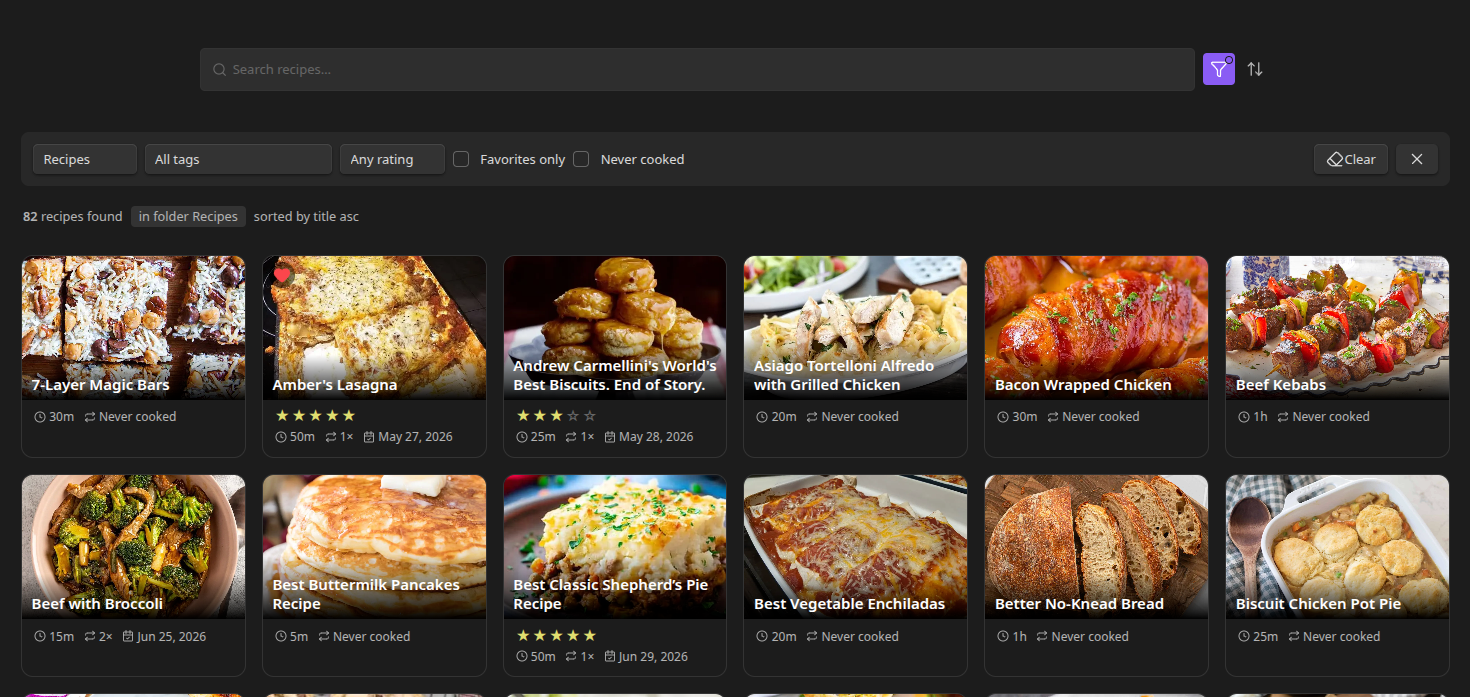
The Gallery is a browsable grid of every recipe in scope - image, title, and badges at a glance - with search, filtering, and sorting to find what you're looking for. Unlike the Recipe View, which shows one recipe at a time, the gallery is a persistent pane you can leave open and return to.
Opening the Gallery
Run the Open recipe gallery command from the Command Palette, or click through from the Dashboard (the "Total recipes" card, the "New recipes" section's "View full gallery →" link, or a search).
Cards
Each card shows:
- The recipe's hero image (see Recipe View#The Image Card for how it's resolved).
- Title and star rating (read-only here - change a rating from the recipe itself, not the card).
- A badge row using the same badges configured for the recipe view header, capped to fit the card.
- An ⋯ actions menu in the top-right corner: Add to meal plan, Share recipe, Add to grocery list. Each opens the same dialog you'd get from the recipe view itself.
Clicking anywhere else on the card opens the recipe in the normal Recipe View.
Filters
All filters combine with AND - each one narrows further, and leaving a filter unset doesn't exclude anything.
- Search - matches recipe titles and ingredient names, filtering live as you type.
- Folder - a dropdown of folders that contain in-scope recipes. Selecting one includes its subfolders too.
- Favorite only - show only recipes you've favorited.
- Tag - filter to a specific tag.
- Diet / allergen exclusion - hide recipes matching diets or allergens you choose (the same data used for the allergen warning banner, applied here as an exclusion instead).
- Minimum rating - hide recipes below a star threshold.
- Never cooked - show only recipes with no cook history yet.
Sorting
Title (A-Z or Z-A), date added, last modified, last cooked (recipes never cooked sort last; requires cook history to be enabled), rating (high to low), or times cooked (high to low). Defaults to title A-Z.
Your last-used filters and sort are remembered the next time you open the gallery.
Results Summary
A row above the grid shows how many recipes matched ("12 recipes found"), a chip for each active filter (e.g. "favorites only", "rating ≥ 4"), and the current sort ("sorted by title asc") - a quick way to see at a glance why you're seeing what you're seeing.
Opening the Gallery from a Folder
You can set Recipe Box to open the gallery, pre-filtered, whenever you click one of your recipe folders in the file explorer - instead of just expanding/collapsing it. This is opt-in and off by default, under Settings → Recipe Box → Recipe library:
- Open gallery when clicking a recipe folder - master switch. When on, clicking a configured recipe folder's name opens the gallery filtered to that folder. Folders you've enabled this for are marked with a distinct underline in the file explorer so they stand out from ordinary folders.
- Also apply to subfolders - when on, clicking any subfolder beneath a recipe folder opens the gallery filtered to that specific subfolder too. Off by default.
This works with both Obsidian's built-in file explorer and the Notebook Navigator plugin, if you use it. Clicking the expand/collapse arrow (rather than the folder name) always behaves normally, regardless of these settings.