Meal Suggestions
Recipe Box can recommend recipes from your library using a flexible mode-based suggestion engine, and show you stats about what you actually cook.
Opening the Suggester
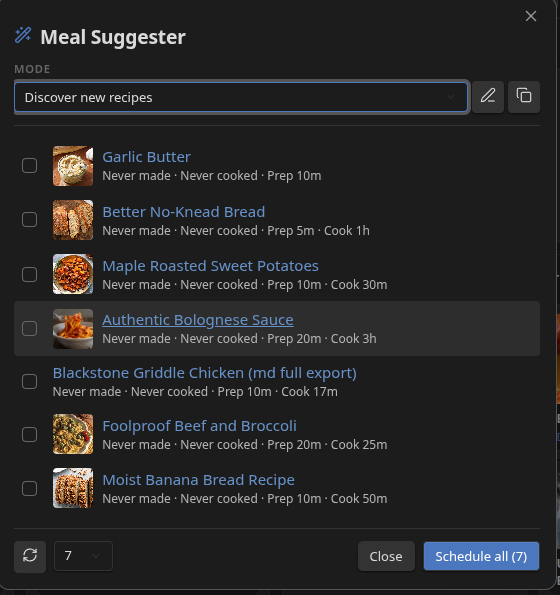
Run the Suggest a meal command, or click the Suggest a meal button in the meal plan view toolbar. Recipe Box scans your recipe library and ranks results according to the active mode.
Modes
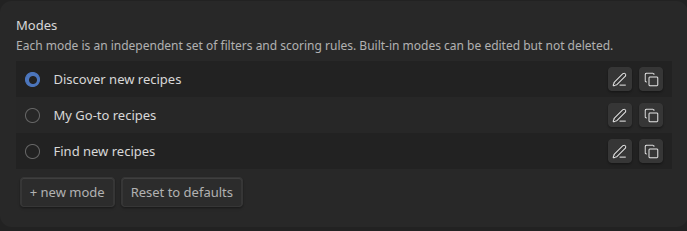
The suggester is built around modes - named, independently-configured combinations of filters and scoring rules. Each mode produces a different ranked list from the same recipe library, so switching modes answers different questions ("what haven't I made in a while?" vs "what are my go-to dinners?").
Three built-in modes ship with Recipe Box. All can be edited but not deleted:
Find New Recipes (Default)
Surfaces recipes you've never made, or rarely made, and deprioritizes your established favorites. Good for working through a backlog of saved recipes.
- Scoring: prefers recipes with no
lastMadedate (never cooked) → lowerfavorite→ lowercookedCount
Rediscover Favorite Recipes
Finds favorites and well-loved recipes that have quietly fallen out of rotation.
- Scoring: prefers older
lastMade(longest gap since last cook) → higherfavorite→ lowercookedCount
My Go-to Recipes
Surfaces your most reliable, frequently-made favorites - the recipes you'd reach for on a weeknight without much thought.
- Scoring: prefers
favorite: true→ highercookedCount
Using the Suggestion Dialog
When you open the suggester:
- Select a mode from the dropdown at the top - the results update automatically.
- Browse the result cards, each showing the recipe name, thumbnail, and key scoring-field values (last made date, cook count, rating, etc.).
- Check the checkbox on any recipes you want to schedule, or leave all unchecked to schedule the full result set.
- Click Schedule all (or Schedule selected if you've checked specific recipes) to open the schedule dialog.
You can also click any recipe name to open it directly. Use the result count selector in the footer to show 5, 7, 10, or 14 results. The refresh button re-runs the current mode.
Scheduling Suggested Recipes
The Schedule button opens a dialog to bulk-assign the selected (or all) recipes across the week in one action.
Options
Clear meal plan first - wipes the current plan before placing the new recipes. When this is checked, the day fill mode is hidden (clearing the plan makes every day available, so the mode choice is moot).
Meal type - applied to every scheduled recipe. Optional; suggestions for Breakfast, Lunch, Dinner, and Snack are offered, plus any meal types already in your plan.
Day fill mode - controls how days are chosen:
| Mode | Behavior |
|---|---|
| Skip occupied days | Places one recipe per day, skipping days that already have any entry. Default. |
| One per meal type | Places one recipe per day per meal type - allows multiple recipes on the same day as long as they have different meal types. Requires a meal type to be set. |
| Stack freely | Distributes recipes across the seven days in order, wrapping around from Sunday to Monday. No occupancy check - multiple recipes can land on the same day. |
| Add all to queue | Skips day assignment entirely; adds every recipe to the unscheduled queue. |
Add overflow to queue - when Skip occupied days or One per meal type runs out of available days before all recipes are placed, remaining recipes go to the queue rather than being dropped. Shown for those two modes only.
After confirming, Recipe Box schedules the recipes, then opens the meal plan view so you can see and adjust the result.
Editing the Active Mode
You can edit suggestion modes directly from the suggester modal window. The pencil icon next to the mode dropdown opens the mode editor. The duplicate icon creates a copy as a new custom mode, without touching the built-in defaults.
Building Custom Modes
Go to Settings → Recipe Box → Meal suggester → Modes and click + new mode, or duplicate an existing mode from settings or from the suggester dialog.
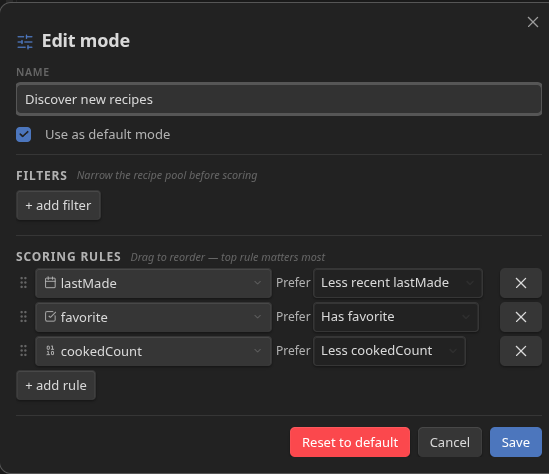
Each mode has a name, an optional default toggle, filters, and scoring rules.
Filters
Filters narrow the recipe pool before any scoring happens. A recipe must pass all filters to appear in results. Recipes already on your meal plan are always excluded regardless of filters.
Each filter has a field (any frontmatter property or a tag pseudo-field like #vegetarian), an operator, and a value. Available operators depend on the field type:
| Field type | Operators |
|---|---|
| Number | equals, greater than, less than, between |
| Date | is on, before, after, within last N days, not within last N days, between |
| Boolean | is true, is false |
| Text | equals, contains, is one of |
| Tag | has tag, doesn't have tag |
Examples:
cuisinecontainsItalian- only Italian recipeslastMadenot within last 14 days - cooldown before re-suggestingprepTimeless than30- quick recipes only#vegetarianhas tag - vegetarian only
Multiple filters combine with AND logic.
Scoring Rules
Scoring rules rank the filtered recipes. Rules are ordered by priority: the first rule carries the most weight. Drag to reorder on desktop, or use the arrow buttons on mobile.
Each rule has a field and a preference direction:
- More [field] (favor-high) - higher values score better.
- Less [field] (favor-low) - lower values score better.
- No [field] (favor-none) - recipes with no value score best.
For boolean fields: "Has favorite" / "Doesn't have favorite". For date fields: "More recent lastMade" / "Less recent lastMade".
Built-in Modes Are Resettable
Open a built-in mode in the editor and click Reset to default (confirm twice) to restore its original filters and scoring rules. Reset all modes (in Settings → Recipe Box → Meal recommender) restores all built-in modes and deletes all custom modes. This is destructive and cannot be undone.
Cook History and Scoring
The built-in scoring rules act on lastMade and cookedCount, both of which are kept in sync with your cook history automatically. Keeping Track cook history enabled means the suggester always has accurate data to rank results. See Cook History for how recording, viewing, and editing cook history works.
Related Settings
Settings → Recipe Box → Meal suggester: Modes (list, edit, duplicate, delete, set default, reset all).
See Settings Reference.