Meal Planning
Recipe Box keeps your meal plan as a single Markdown note (default Meal Plan.md), and uses it to automatically build your grocery list.
Adding a Recipe to the Meal Plan
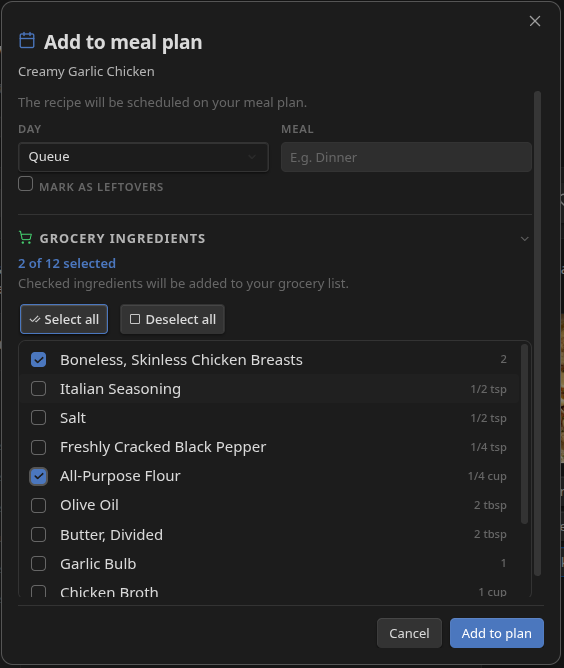
From a recipe's Recipe View, click the add to meal plan button, or run the Add/remove this recipe from meal plan command. This opens the Add to meal plan dialog:
- Day - Queue (unscheduled), or Monday through Sunday.
- Meal - free text with suggestions for Breakfast, Lunch, Dinner, Snack (you can type any custom value).
- Mark as leftovers - optionally flag this entry as leftovers (see Leftovers below).
- Grocery ingredients - an expandable section listing the recipe's ingredients; check the ones you want to add to the grocery list. Lines tagged
#IgnoreIngredientare excluded.
Clicking Add to plan writes a new line to the meal plan note and (for the ingredients you checked) adds their quantities to the grocery list note.
Meals can also be added to the meal plan using the Meal Suggester
Custom Meals
You can plan any meal - takeout, a dish you're winging, last night's leftovers - without needing a recipe note. From the Meal Plan view (open it from the Dashboard's meal plan mini-grid, or its own footer link), click the + button in any day column or the Queue strip. The picker opens:
- Search a recipe name to add a linked recipe, or
- Type any meal name - when the input isn't empty, "Add [name] as a custom meal" appears at the top of the list.
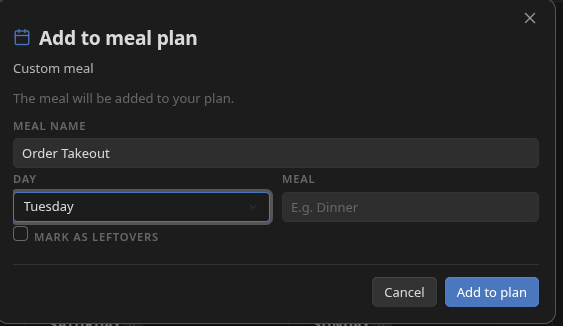
Selecting the custom meal row opens the same Add to meal plan dialog as a recipe, but without the grocery ingredients section (since there's no note to pull ingredients from). You can set a day, meal type, and leftovers flag, then click Add to plan.
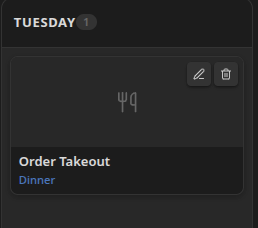
Custom meal entries appear in the week grid as a distinct card style - no recipe image, just a utensils icon and the meal name. Click the pencil icon on the card to edit the name, day, meal type, or leftovers flag.
Leftovers
Any planned entry - recipe or custom meal - can be flagged as leftovers. Check Mark as leftovers in the add/edit dialog. In the week grid, leftovers entries show a (Leftovers) badge and a crossed-utensils icon. The status row in the recipe view also shows "as leftovers" when that flag is set.
In the meal plan note, leftovers are written with a #leftovers tag:
- [ ] [[Pasta Fagioli]] #meal/dinner #leftovers
- [ ] Yesterday's curry #leftovers
The Meal Plan Note Format
Recipe Box writes the meal plan as Markdown checkboxes grouped by day. Recipe entries are wikilinks; custom meal entries are plain text lines. Both can carry a meal type suffix and a #leftovers tag:
# Meal Plan

## Monday
- [ ] [[Spaghetti Aglio e Olio]] #meal/dinner
- [ ] [[Overnight Oats]] #meal/breakfast
- [ ] Grilled cheese #meal/lunch

## Tuesday
- [ ] [[Pasta Fagioli]] #meal/dinner #leftovers

## Meal Plan Queue
- [ ] [[Shakshuka]]
- [ ] Last night's curry #leftovers
Day sections are ordered Monday through Sunday, with Meal Plan Queue at the top for unscheduled entries. You can edit this note by hand - add, remove, or move lines, change the meal type text, or add custom text under a day. Recipe Box preserves any non-entry lines (notes, custom text) within each section when it rewrites the note.
The meal type suffix format is configurable - by default it uses a tag (#meal/dinner), but you can switch to a Dataview field Dinner]) or plain parenthetical text ((Dinner) in Settings → Recipe Box → Meal Plan.
The Meal Plan View
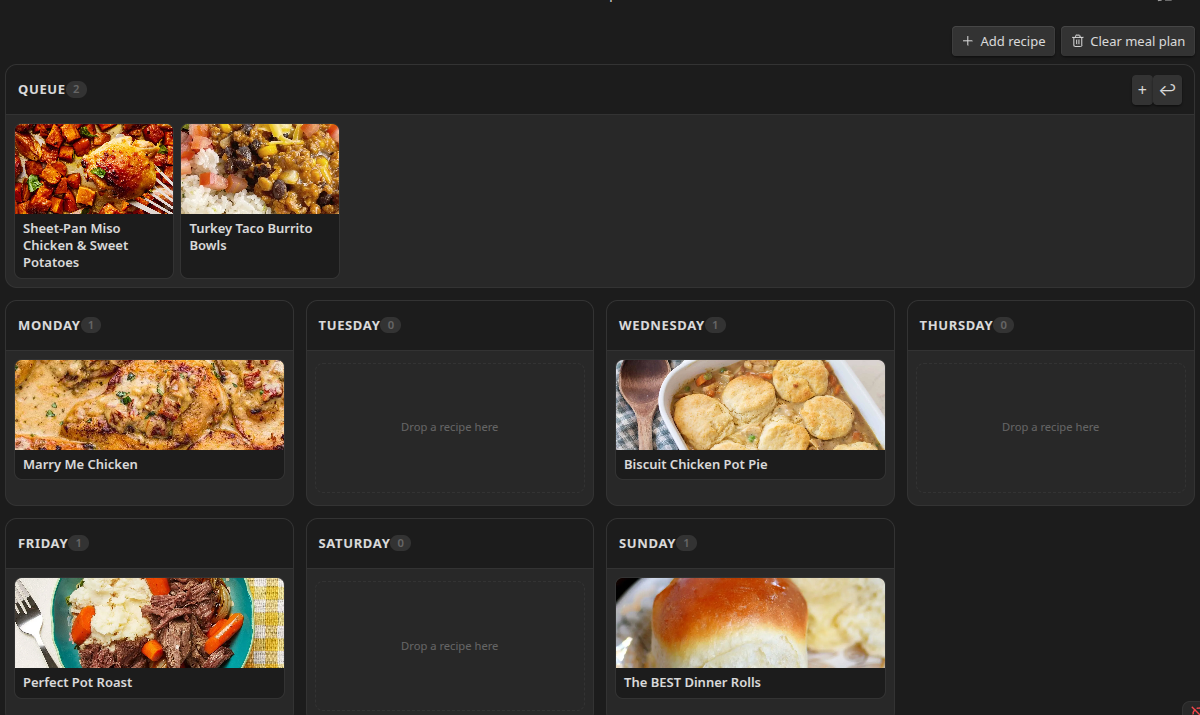
Open the Meal Plan view (from the Dashboard's meal plan mini-grid, via "View full meal plan →") to see your week as a drag-and-drop grid. Recipes appear as cards with their image and title; custom meals appear with a utensils icon. Drag a card to a different day to reschedule it - on mobile, long-press to initiate a drag.
Click the + button in any column to open the recipe picker for that day. Click the pencil icon on any card to edit it, or the trash icon to remove it.
The Queue strip at the top holds entries added without a specific day.
Removing a Recipe from the Meal Plan
Click the same toggle button/command on a recipe that's already planned, or delete its line from the meal plan note. Removing a recipe subtracts the quantities it originally contributed from the grocery list, so other recipes' contributions and your manually-added items are unaffected. Custom meal entries are removed the same way.
Syncing
Syncing the meal plan to the grocery list usually happens automatically. If you need to force it, run Sync grocery list from meal plan note to reconcile the grocery list with the current state of the meal plan note. This is useful if you edited the meal plan note by hand or want to pick up newly-discovered recipes' ingredients.
If Auto-add ingredients on sync is enabled, newly added recipes have their ingredients added to the grocery list automatically during sync (filtered to recipes tagged with Auto-add ingredients tag, if you've set one).
Clearing
Clear grocery list (in the Shopping Assistant toolbar) clears only the grocery list, leaving the meal plan intact. To clear both together, use the Clear meal plan button in the meal plan view.
Dated Meal Plan Notes
The Meal plan note path setting supports Moment.js format tokens, so you can point Recipe Box at a new note each week or month (e.g. Meal Plans/YYYY-[W]ww.md). See Setting Up Meal Plan and Grocery Notes.
Related
- Shopping Assistant - how the grocery list is built and grouped from the meal plan
- Meal Suggestions - get suggestions for what to add next